Reading the blink codes: start every robot vacuum error fix here
Your robot vacuum only speaks in beeps, blinks, and cryptic app pop ups. Those tiny error lights hide the fastest robot vacuum error fix, because each pattern maps to specific issues with power, charging, sensors, or brushes. Before you grab a screwdriver, open the app, note the exact error wording, and check whether the vacuum cleaner is showing a steady light, a flashing ring, or a sequence of pulses.
Most robot vacuums from iRobot Roomba, Roborock, Dreame, Ecovacs, and Eufy use the same logic ; a red light usually signals low battery or vacuum charging faults, while blue or white lights point to navigation or obstacle avoidance problems. When the robot sits on the dock but the charging indicator never animates, you are likely facing charging dock or charging station contact issues rather than a dead battery, so start by cleaning the charging contacts with a dry cloth and checking the wall socket for stable power. If the app shows a generic error without detail, perform a soft reset by using the correct button combination, then press hold until the robot restarts, which clears many common software glitches without touching your maps.
Every brand hides its own reset robot procedure ; on many Roborock and Dreame models you press hold the reset button and power key together, while older Roomba vacuums use a different button combination near the clean key. A soft reset is usually enough when the robotic vacuum still moves and the suction power feels normal, but the app misreports room maps or cleaning history, so try that before any factory reset that wipes data. Keep a short log of which error lights appeared, which reset steps you tried, and whether the robot vacuum resumed cleaning, because that record speeds up support calls if home fixes fail.
Sensor panics and dark floors: stopping false cliffs and wall hugs
One of the most frustrating robot vacuum error fix scenarios is the robot that refuses to cross a perfectly safe dark rug. Cliff sensors on many robot vacuums misread black or navy carpets as a drop, triggering obstacle avoidance routines and constant error beeps even though the floor is flat. When that happens, the goal is to clean the sensors thoroughly, then adjust settings so the vacuum cleaner trusts your flooring again.
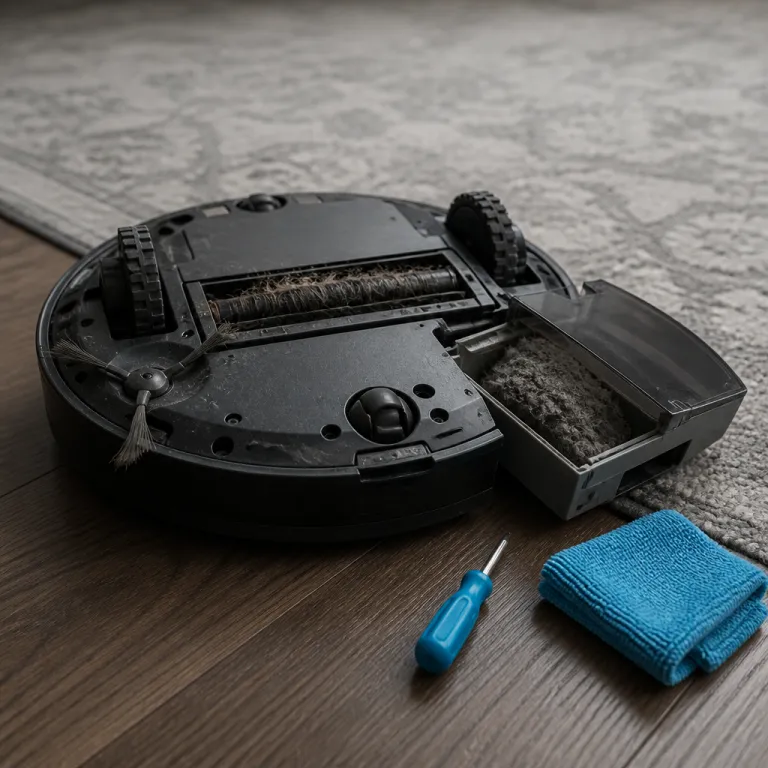
Flip the robotic vacuum over on a table, switch off the power, and gently clean each of the downward facing sensors with a microfiber cloth to remove dust and dirt debris. If your model is a vacuum mop hybrid such as a Dreame L10s Ultra or Ecovacs Deebot X1 Omni, also check the front facing obstacle avoidance sensors and side brushes, because sticky splashes from mopping can coat the lenses and cause navigation issues. For homes with consistently dark floors, some apps allow you to reduce cliff sensitivity in the cleaning settings, while others require you to contact support to ask whether a firmware update can relax the sensor thresholds without compromising safety.
Edge performance matters too ; if the robot keeps missing baseboards after a sensor cleaning, inspect the side brushes and any extendable arms for wear, then compare their reach with independent tests of edge cleaning systems that actually reach skirting boards. When repeated sensor errors persist on a specific dark rug, try rolling that rug back temporarily and running a full cleaning cycle to confirm that the vacuum behaves normally elsewhere, which isolates the problem to color contrast rather than electronics. If the robot still throws the same error on pale tiles after a soft reset and sensor cleaning, you may be looking at a failing sensor board and should stop home troubleshooting before you void the warranty.
Brush jams, hair tangles, and weak suction: restoring real world cleaning power
Busy parents usually notice a robot vacuum error fix is needed when crumbs stay on the kitchen floor and pet hair lines the hallway. That is almost always a mechanical problem with brushes or suction rather than a mysterious software bug, because tangled hair can stall the brush motor and choke airflow in even the most expensive vacuums. The fix is methodical ; clean every brush, check every airway, and only then worry about motors or a factory reset.
Start by removing the main roller and side brushes from the vacuum cleaner, cutting away hair with scissors and sliding out any built in comb tools that came with the robot. Pay attention to the brush bearings at each end, because dirt debris and long hair can wrap tightly around these posts, causing issues that feel like low suction power even when the motor is fine. If your robotic vacuum is a vacuum mop combo such as the Dreame L10s Ultra or Ecovacs Deebot X1 Omni, also clean the mop plate and water channels, since dried detergent can partially block the air path and reduce suction during cleaning runs.
Once the brushes are spotless, remove the dustbin, tap out the filter, and clean any foam pre filters according to the manual, then run the robot vacuum on a small test patch of carpet to judge suction by ear and by how much debris appears in the bin. If the robot vacuums still leave obvious crumbs and the app reports a brush or suction error, try a soft reset using the correct button combination before assuming the motor is dead, because some models misinterpret a brief stall as a permanent fault. For parents choosing a new model after repeated failures, look at independent testing of robot vacuum cleaners that actually work in real homes, focusing on units with easily removable brushes and clear access to the suction path so weekly maintenance takes minutes, not an entire nap time.
Charging, mapping, and resets: knowing when to wipe and when to wait
Many robot vacuum error fix cases trace back to two intertwined systems ; charging reliability and map stability. When the robot fails to find the dock, stops mid run with a low battery warning, or forgets rooms after you move furniture, you are dealing with charging and navigation rather than raw suction. The key is to separate physical charging problems from software confusion before you reach for a factory reset.
For charging issues, place the charging dock on a hard, flat surface with at least half a metre of clearance on each side, then check that the charging contacts on both the dock and the robot are clean and free of dirt debris. If the robot vacuum docks but the app still shows vacuum charging errors or the battery percentage never rises, wipe the contacts with isopropyl alcohol, confirm the power brick is firmly seated, and test another outlet to rule out household wiring. When a Dreame L10s Ultra, Ecovacs Deebot X1 Omni, or Roborock S8 Pro Ultra sits on the charging station without lighting the charging icon, you may need to press hold the reset button for a soft reset, but avoid a full factory reset until you have ruled out a loose cable.
Mapping problems feel different ; the robot vacuums wander, miss rooms, or report an error about map corruption after you rearrange a sofa or add a playpen. In those cases, first try a soft reset through the app or via the physical button combination, then run a full cleaning cycle from the dock so the robotic vacuum can rebuild its internal map gradually. Only perform a factory reset when maps are completely unusable, the app cannot load any previous layouts, and repeated soft resets fail, because a factory reset wipes schedules, no go zones, and custom suction power settings that took time to tune for your family.
Battery life, travel routines, and knowing when to call support
Even the best robot vacuum error fix cannot reverse a worn out battery forever. Lithium ion packs inside robot vacuums gradually lose capacity after hundreds of charging cycles, especially when they sit at full power on the charging dock all day in a warm kitchen. You will notice the change when cleaning runs shrink, low battery warnings appear earlier, and the robot needs two or three trips to finish a floor it once handled in one pass.
To slow that decline, let the vacuum cleaner complete full runs regularly, avoid unplugging the charging station between cycles, and run a calibration cycle every few months by letting the robot run down almost fully before returning to the dock. If your model supports travel modes in the app, follow a guide such as the vacation proof setup from setting your robot to clean while you travel, which explains how to pause schedules without leaving the battery at a stressful charge level for weeks. When a battery drops from ninety minutes of cleaning to thirty minutes within a few months, or the robot shows an error about the battery pack itself, replacement is usually more sensible than endless resets.
There is also a clear line where home troubleshooting should stop ; if a factory reset, sensor cleaning, brush maintenance, and careful checks of charging contacts do not clear repeated error codes, contact the manufacturer rather than opening the shell. Brand specific guides from iRobot, Roborock, Dreame, and Ecovacs list which error numbers indicate motor failures, mainboard faults, or damaged obstacle avoidance sensors that require professional service. For parents juggling work, school runs, and nap schedules, the most reliable robot vacuum is not the one with the fanciest pro omni dock, but the one whose support team can walk you through a safe reset robot procedure, arrange a battery swap, or approve a repair before crumbs and pet hair reclaim the hallway.
FAQ
Why does my robot vacuum stop with a brush error every week ?
Frequent brush errors usually mean hair and threads are wrapping around the main roller or side brushes faster than you are cleaning them. Remove the brushes weekly, cut away tangles at the bearings, and clear dirt debris from the brush ends, then run a short test clean to confirm the error disappears. If the problem returns within a day even after thorough cleaning, the brush motor or gearbox may be worn and you should contact support.
How do I safely reset my robot without losing maps ?
A soft reset is the safest first step, because it restarts the robotic vacuum’s software without erasing maps or schedules. Use the app or the documented button combination to press hold the reset button or clean key until the lights flash, then let the robot reboot on the dock. Only use a full factory reset when maps are corrupted or the app cannot connect at all, since that process wipes all stored layouts and preferences.
What should I check if my robot will not charge on the dock ?
Start by confirming the charging dock has power and the cable is firmly plugged into both the wall and the base. Clean the charging contacts on the dock and the robot vacuum with a dry cloth, then reseat the robot and watch for charging indicators in the app or on the shell. If the robot still shows a low battery or vacuum charging error after moving to another outlet, the battery or charging board may have failed and needs professional diagnosis.
Can dark rugs permanently confuse cliff sensors on robot vacuums ?
Dark or black rugs can trigger false cliff readings on many robot vacuums, because the downward sensors interpret the low reflectivity as a drop. Cleaning the sensors and updating firmware often reduces these false positives, and some brands allow sensitivity adjustments in the app. When a specific rug continues to cause errors after those steps, you may need to relocate the rug or contact support to ask about hardware limits for that model.
When is it time to replace the battery instead of resetting again ?
If your robot vacuum’s run time has dropped by more than half compared with its performance when new, and it now triggers low battery warnings after a short cleaning, the battery is likely at the end of its useful life. Calibration cycles and soft resets can correct misreported percentages, but they cannot restore lost capacity. At that point, a genuine replacement battery from the manufacturer is usually the most effective robot vacuum error fix for short runs and repeated charging interruptions.